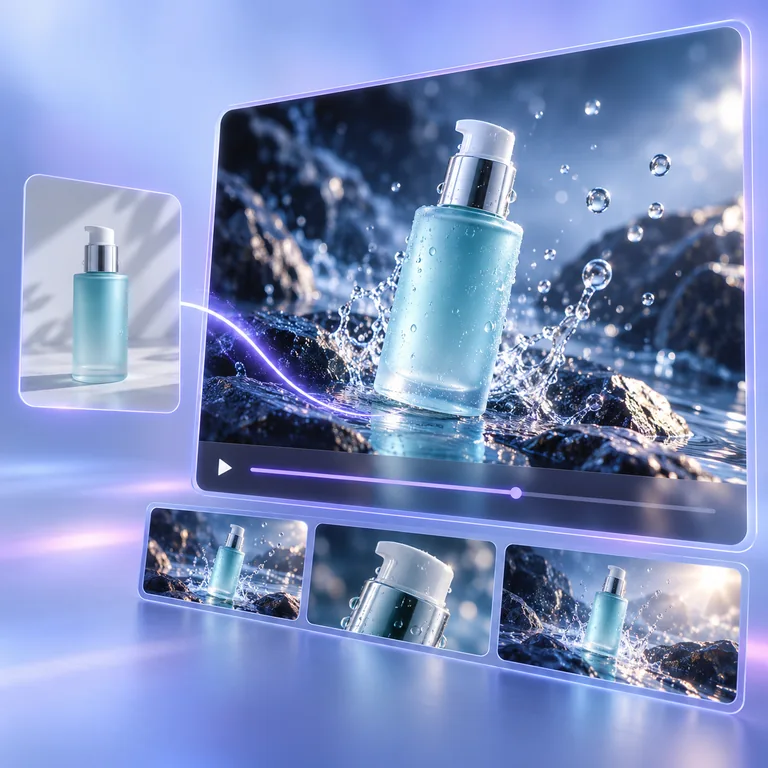
Product Photos to Video Ads
Add a controlled orbit, moving reflections, fabric, particles, or background motion to an approved product still. Review product shape, labels, and logos carefully before publishing.
Use an AI video generator from image input to turn a still photo into a short clip, guided by your motion prompt. Direct the subject, camera, atmosphere, and sound, then choose from available Grok, Seedance, Kling, and MiniMax models. Adjust duration, aspect ratio, resolution, and audio where supported, and review the current credit cost before generating.
Use AI Photo to Video to animate a still photo by describing the movement you want to see. Add a natural blink or head turn to an authorized portrait, move clouds and water through a landscape, bring fabric and hair to life, or add subtle action to a product scene. The source image gives the model its starting subject, composition, color, and lighting, while your prompt directs what happens next. Clear, restrained motion usually makes it easier to keep recognizable details stable.
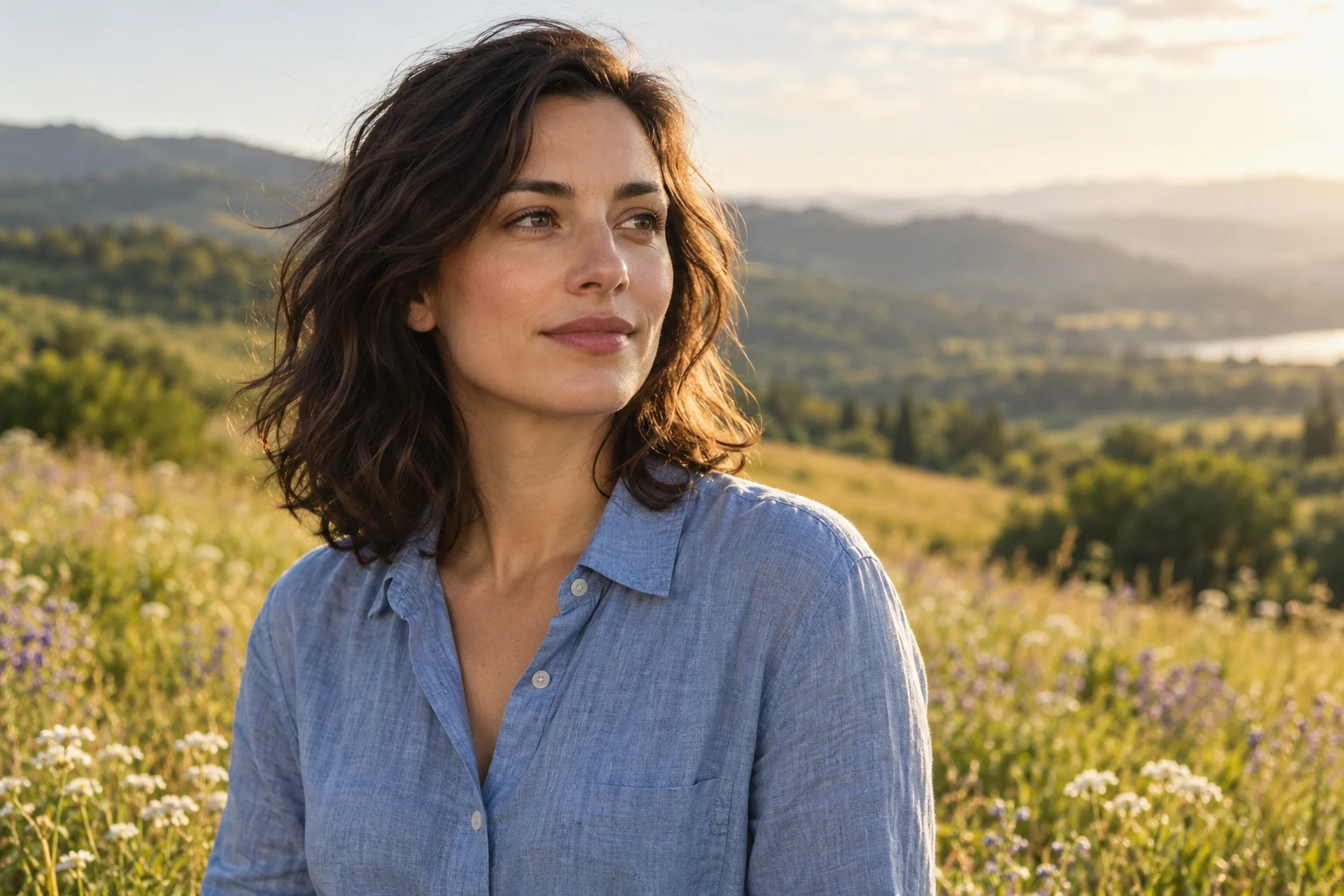
Use image to video AI to turn a static frame into a cinematic shot by describing how the virtual camera should move. Ask for a slow dolly-in, gentle pan, tilt, orbit, tracking move, or subtle handheld drift, then describe which faces, products, lines, and background geometry should remain stable. Separating camera direction from subject action gives the model a clearer motion brief and makes different versions easier to compare.
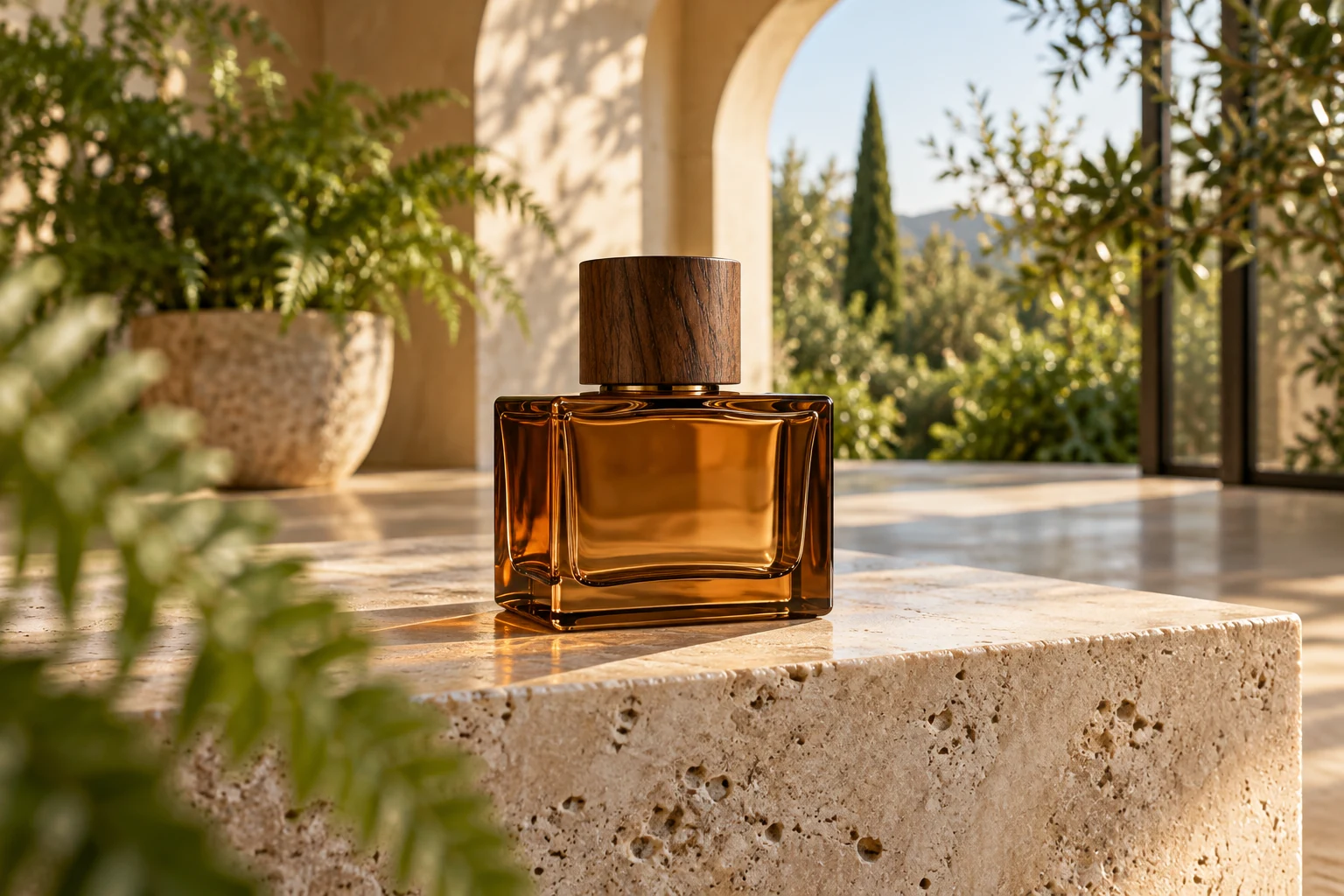
Create an image-to-video clip with model-generated sound when the selected model supports native audio. Describe ambient sound, movement, weather, dialogue, or other effects together with the visual action so the model can shape them as one scene. Audio availability, whether it can be switched off, supported duration, resolution, and credit cost all depend on the selected model and variant.
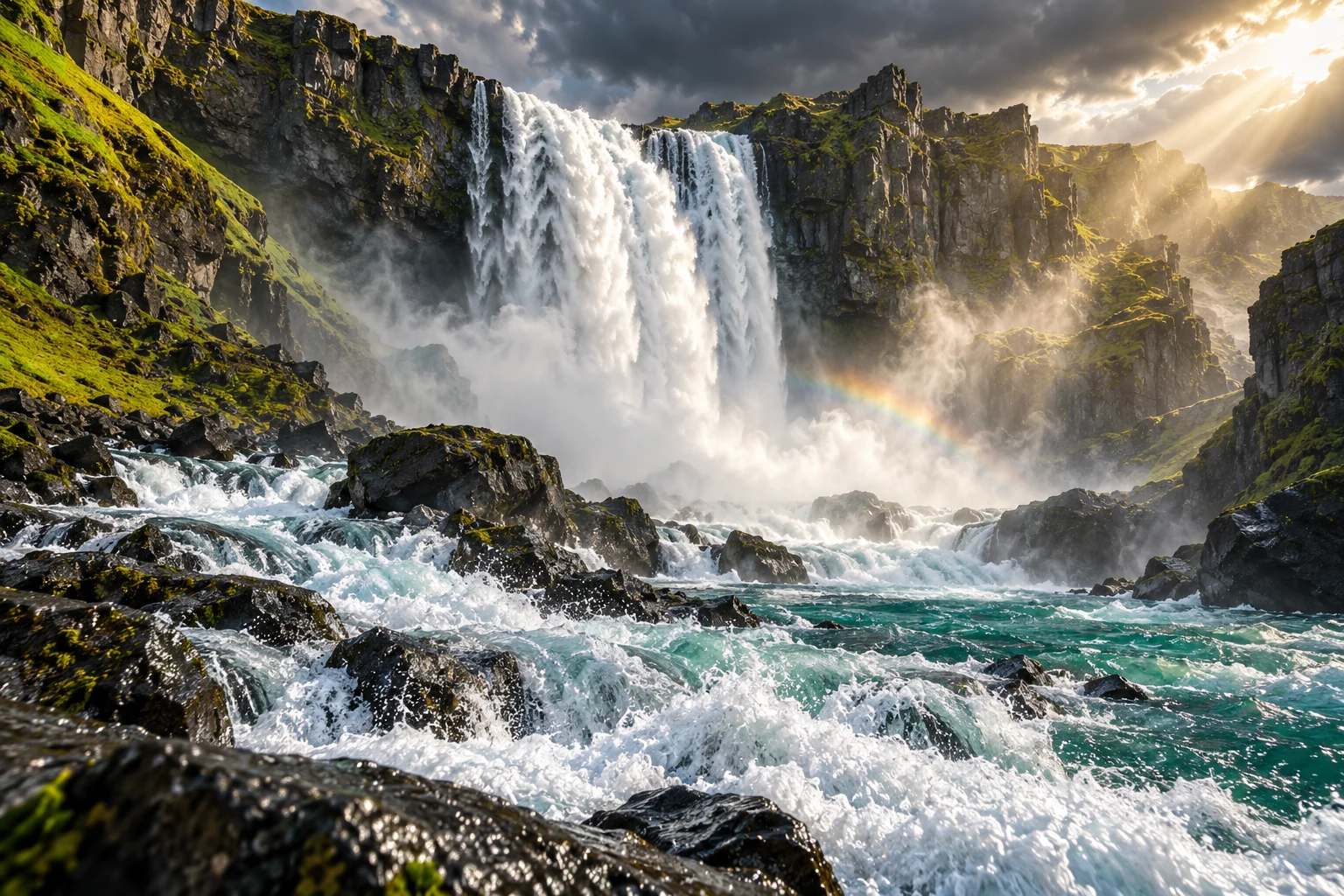
Turn approved still visuals into short motion assets for creative concepts, campaigns, social posts, and editing timelines.
Add a controlled orbit, moving reflections, fabric, particles, or background motion to an approved product still. Review product shape, labels, and logos carefully before publishing.
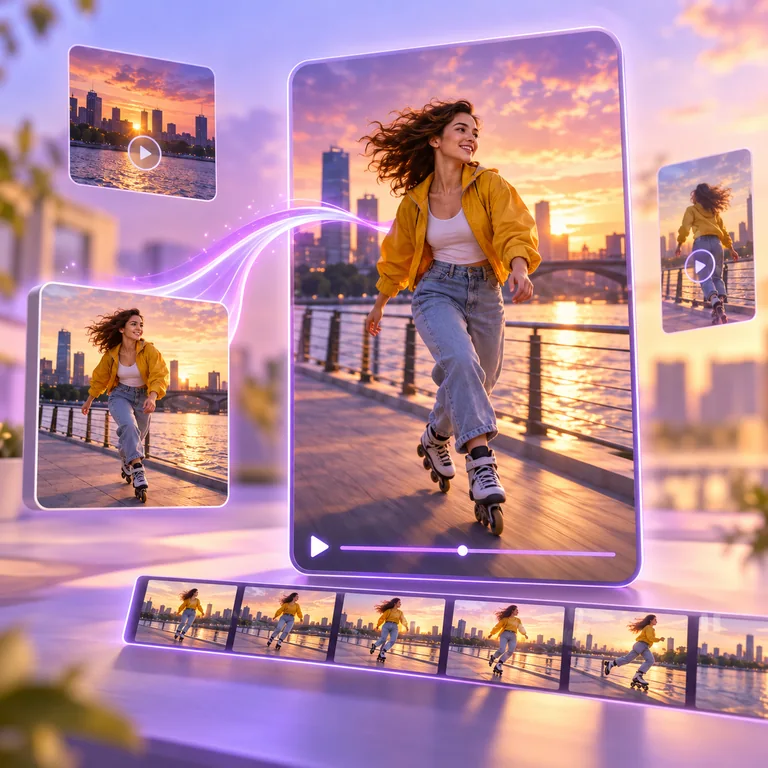
Create short motion clips for social posts, Reels, and Shorts. Choose vertical, square, or widescreen framing where the selected model supports it, then download a shot for your social content workflow.
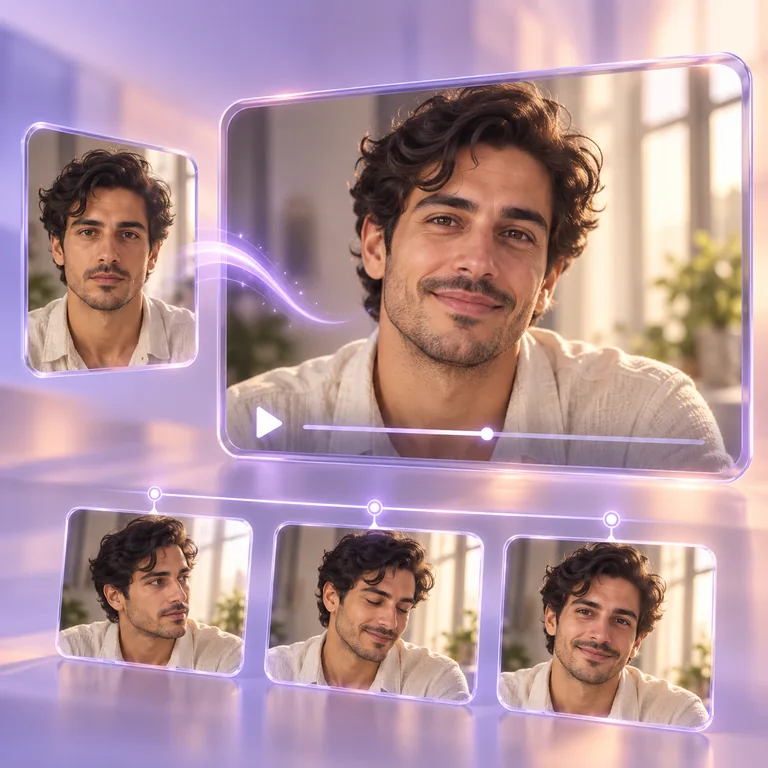
Add restrained facial, hair, clothing, and camera motion to portraits and personal photos you have permission to use. Describe one natural action and keep important details stable in your prompt.
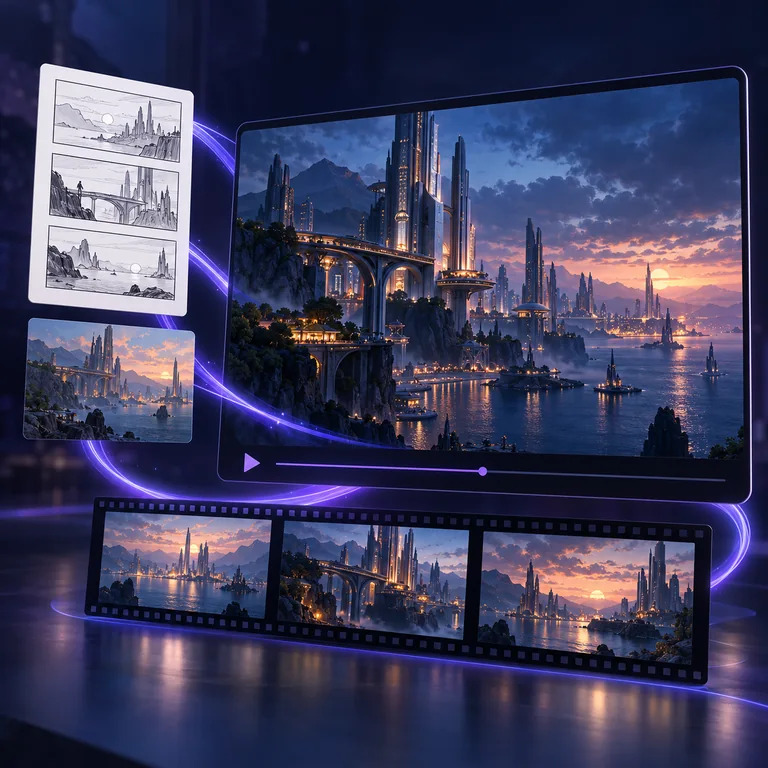
Turn approved artwork, storyboards, locations, and campaign frames into moving concepts or short cutaways for a larger edit.
Upload one supported JPG or PNG. Use a clear subject, good lighting, and enough room for the movement you want. The generator shows current file and dimension requirements.
Write what the subject does, how the camera moves, what changes in the environment, and which details should remain stable.
The best image to video AI model for your shot depends on the motion, duration, resolution, audio needs, and credit budget. Select an available model and settings; valid combinations and the exact credit cost are shown before generation.
Generate the clip, inspect motion, continuity, sound, faces, text, products, and geometry, then download the result or try a more focused prompt.
The woman turns gently toward the camera and gives a restrained smile. The camera makes a slow dolly-in. Her hair and nearby flowers move in a soft breeze. Keep her facial identity, body proportions, dress, horizon, and background geometry stable.
Motion ideas for product teams, social creators, photographers, and storytellers—built around a single starting image.
For product launches, a short camera orbit can give one approved still a new role in a campaign. Keep the motion controlled and check labels, reflections, and product geometry before publishing.

A strong vertical image can anchor a short Reel or teaser. Describe one main action, choose a supported portrait format, and check that the subject stays readable after the clip is cropped for the feed.
Subtle blinks, a small head turn, and a soft breeze can give an authorized portrait a more lifelike feel. Keep expressions restrained and review facial identity, proportions, and background details before sharing.

Bring atmosphere to a location still with drifting clouds, flowing water, or a slow pan. Separate environmental motion from camera direction, and keep horizons and buildings stable when planning a travel sequence.
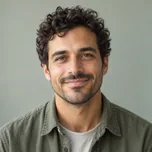
Explore the rhythm of a shot with AI Image to Video before committing to a larger edit. Animate one approved storyboard frame, compare a restrained push-in with a wider move, and use the results as concept material rather than a continuity guarantee.
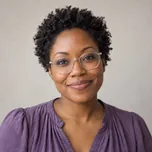
Treat sound and camera motion as parts of the same scene. For an audio-capable model, specify ambience alongside the visual action, then review pacing and sound before placing the clip in an editing timeline.

AI image to video uses a still image as the starting visual for a short generated clip. The model uses the image for subject, composition, color, and lighting cues, then follows a prompt to create subject, camera, environmental, and—where supported—audio changes over time.
Upload one supported image, describe the motion, choose an available model and settings, review the exact credit cost, and generate. After the clip is ready, inspect it before downloading or trying a more focused prompt.
You can try image to video AI for free with eligible trial credits; each generation still uses credits. The exact cost depends on the selected model and settings. Review the quoted cost and your available balance before generating. Trial credits are subject to eligibility and usage limits. You can view the public examples and instructions without spending credits.
With AI Image to Video, you can upload one JPG or PNG image up to 10 MB. The generator validates current dimension and aspect-ratio limits before submission.
Yes, where the selected model supports those controls. Available combinations vary by model: current configured clips range from 3 to 30 seconds, selected models offer resolution up to 4K, and selected Seedance models provide multiple aspect ratios. The generator only shows valid current options.
Yes. Some available models require native generated audio and others let you turn it on or off. Audio support and the credit cost are displayed for the selected model and settings before generation. AI Image to Video does not currently support separate audio uploads, voice cloning, or lip-sync workflows.
Describe the subject action, camera movement, environmental motion, and details that should stay stable. Start with one clear motion direction, use restrained pacing when consistency matters, and change one instruction at a time when comparing results.
No generative result is guaranteed to preserve every detail. A clear source image and focused stability instructions can help, but you should review facial identity, body proportions, product shape, labels, logos, text, and background geometry before using a clip.
ArtDo does not claim ownership of your output, but commercial use depends on your rights to the uploaded image, consent and publicity rights, applicable law, third-party rights, and the selected model provider’s terms. Review the result and the ArtDo Terms of Service before publishing it.
The image, prompt, settings, and generated media needed for the task are processed by the configured AI service. AI Image to Video keeps uploaded images and generated media in private object storage, with short-lived links for access. Your browser keeps up to eight recent tasks for 24 hours. Guest results and results without auto-save expire after 24 hours. Unexpired guest tasks linked to your account keep their original expiry and are not added to My Creations. New account tasks follow your auto-save setting; saved creations use your plan’s retention period.
Turn your next still image into motion.
Use an AI video generator without a watermark to turn your next still into a downloadable clip. Upload a frame, direct the movement, and compare the video models and settings available for your shot.
Create an image-to-video clip